User interface
Menu
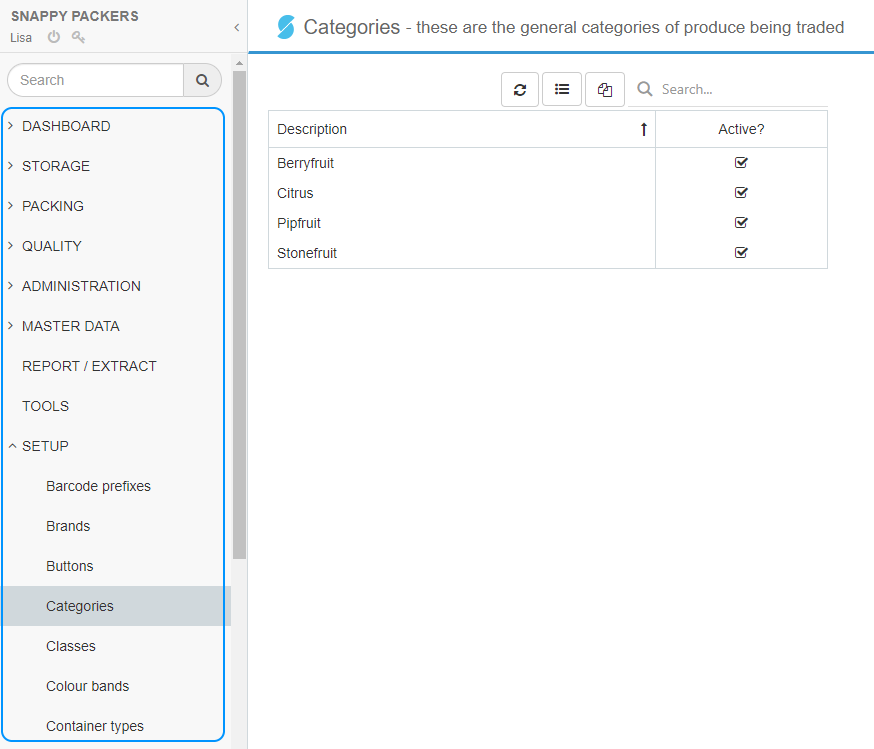
A menu displays on the left hand side of the screen for all items you have access to. Select a menu item to view the screen. NB - menu items are dependent on your user rights.
The < icon on the screen hides the menu. This is useful if you need extra screen space. Use the  icon to show the menu again.
Search box
Search for bins, pallets, cartons or menu items. See Search for more detail.
Grids
All grids have the following functionality:
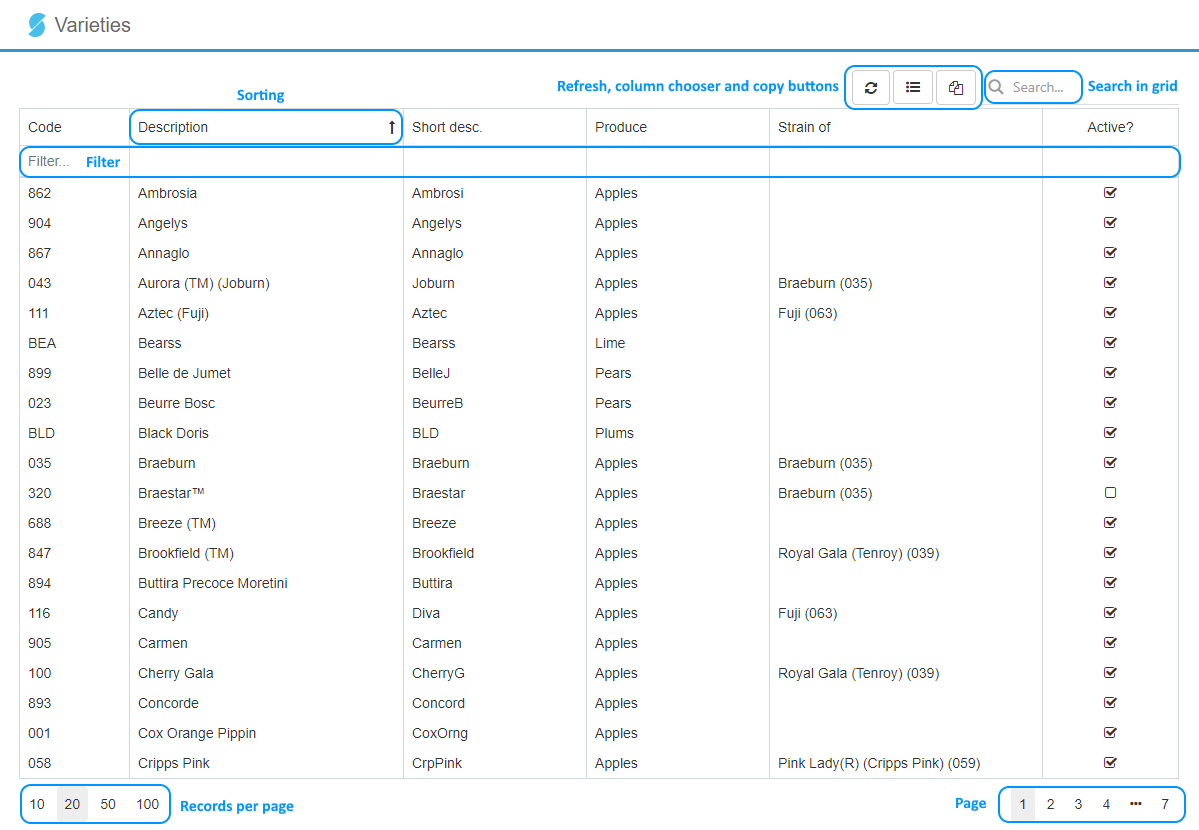
- Sorting - click on any column header to sort by this column, an arrow
 will display to indicate this is the column that is sorted. Click this column again to sort the column descending, a down arrow will display
  Click again to unsort this column.
 - Filters - type in any column filter. This will filter the list to show records with this text in any part of the value for this column.
- Refresh button - refreshes the list.
- Column chooser - allows you to hide columns or view extra columns. Your column preferences will be saved to your computer's browser (so other people using your computer will see the same columns).
- Copy - copy contents of grid to clipboard. This is a useful function that allows you to paste into Excel.
- Search in grid - similar to filters, will filter records based on the text you have typed but in any of the columns.
- Records per page - the number of records to show on a page.
- Page - will only display if there are multiple pages, select which page you want to view.
Most grids allow you to click on a record that will drill down into another screen.
Tip
Any icons in the grid will have an action associated with it, eg an envelope icon will email, a printer icon will print something, etc. Hover over the icon to get more detail.
Help documentation
Located on the top right hand corner of the screen. Opens the help documentation for this screen.

The documentation is the full user documentation. It has a menu structure similar to the snapGrowing menu structure so you can navigate through the help easily.
Buttons
Located on the top right hand corner of the screen:

- Settings - these are the default settings for this pc, eg printers, packing line, etc.
- Help - takes you to the help page for this screen.
- Buttons - any buttons relevant to the screen you are in, eg
Addbutton.
Edit forms
After selecting a record, you will generally be taken to the edit screen.
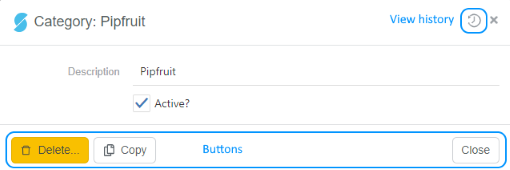
- History - displays the audit history of this record.
- Buttons
- Delete - deletes the record.
- Copy - takes a copy of the current record, you can then make the relevant changes and save.
- Save - appears once you have made some changes. Saves your changes.
- Close - closes the screen.
- Cancel - appears once you have made some changes. Will close the screen without saving.
Reports
Most reports will have your logo printed on the top left hand corner.
Report footers will look a bit like this (colour optional)

This information comes from your vendor in SETUP -> Vendors where it uses the following information (if entered)
- Legal name
- Postal address, Town/city, Post code
- Phone
- Fax
- Website
Internet based
As snapPacking is internet based, you can use the application on any pc, tablet or phone that has an internet browser without the need to install an application. As some screens have a lot of detail, a bigger screen is better.
You can open several windows
- in a new tab - by right clicking on a menu item and selecting
Open link in new tabor hold the Ctrl key down when you select the menu item. - in a new window - by right clicking on a menu item and selecting
Open link in new windowor hold the Shift key down when you select the menu item.